How to Connect Shopify to Printavo
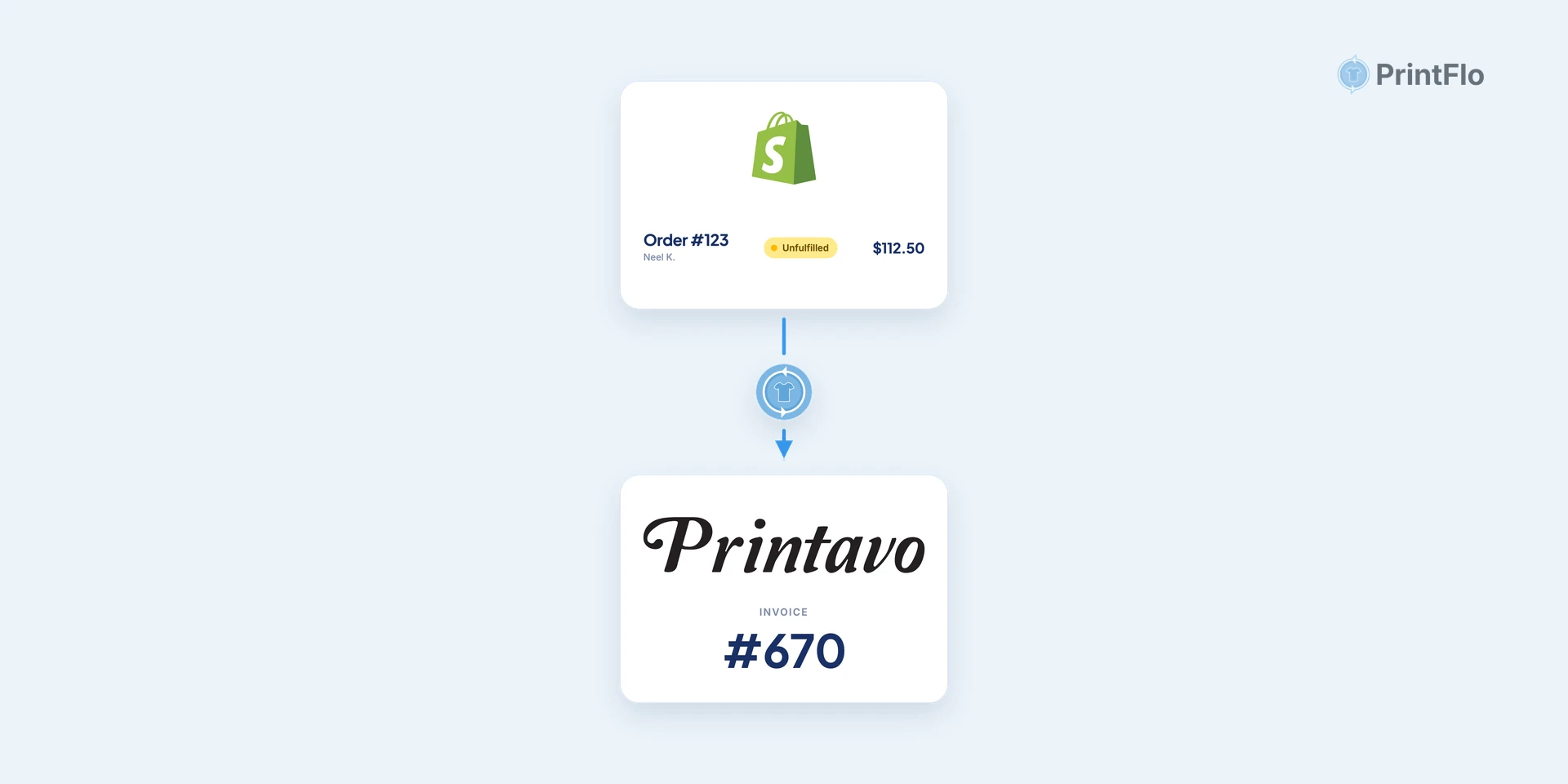
A step-by-step walkthrough to sync Shopify orders into Printavo automatically with PrintFlo, from installing the app to confirming your first order lands as a production-ready invoice.

Before you start
You’ll need:
- A Shopify store (any plan works)
- A Printavo account with API access (you’ll copy your API key and the email on your Printavo account)
- ~5–10 minutes
Install PrintFlo
From the Shopify App Store, search PrintFlo and click Add app. It’s free to install.
Connect your Printavo account
In PrintFlo, paste your Printavo API key and the email on your Printavo account. PrintFlo verifies them and automatically syncs in your Printavo categories, order statuses, delivery methods, and payment terms.
Set your export defaults
Choose the defaults new invoices should use: default Printavo customer, default order status, and default user. Optionally set a default delivery method, payment term, and pricing mode (sales price, no price, or cost per item).
Add production details to your products
For each product, set the details Shopify doesn’t carry: item number (falls back to the Shopify SKU), Printavo category, imprint/print locations, and any production files. You only do this once per product. Sizes map automatically.
Decide how you want to export orders
Pick an export mode: Automation (each order exports on its own), Queue (hand-pick orders into one invoice), or Campaigns (collect and merge all orders for a product into one consolidated invoice).
Confirm it’s working
Pick a recent order or place a test order and check it appears in Printavo as an invoice with the right line items, sizes, mockups, and imprints.
Troubleshooting
- Orders aren’t appearing in Printavo. Re-check your API key and email (Step 2) and that an export mode is enabled (Automations are off by default).
- Sizes look wrong or land in “Other Size.” PrintFlo maps standard sizes automatically; unusual size names fall back to “Other Size” with the original text kept on the line.
- Imprint/category is missing. Make sure the product has its item number, category, and imprint set in Step 4.
- I refunded or edited an order after exporting. The Printavo invoice is a snapshot from export time and won’t auto-update. Adjust it in Printavo directly.
Still stuck? Email team@getprintflo.com. The team responds fast.
Related
- Printavo Shopify integration, the full field mapping and everything that syncs.
- Manual order-entry cost calculator, see what re-typing orders is costing you.